Some content that you'd like to display in a modal
  • Free US Shipping On Orders Over $50. Easy Returns.

DisplayLink macOS Japanese Instructions


DisplayLink Manager – macOS インストレーション方法


直接Synaptics ウェブサイトから最新のDisplayLink Manager Software をダウンロードします: (DisplayLink Manager Software)。 


1. DisplayLink software を使用するOSを対応OSから選びます。

2. 「DOWNLOAD」 を選択し、ソフトウェアライセンス契約をお読みになり、「Accept」 承諾をクリックします。 .PKG ファイルがコンピューターのダウンロードフォルダにダウンロードされます。

Screenshot of the DisplayLink macOS Software download page with the Download button for DisplayLink Manager 1.8.1 circled in red.

3. ダウンロードされたファイルを探し、ダブルクリックするとアプリケーションインストーラーが始まります。


4. 「Introduction」 の部分のインストールを始めるには、「Continue」を選択して、次に進みます。

Install DisplayLink Manager window on macOS at the Introduction step: Welcome to the DisplayLink Manager Installer. You will be guided through the steps necessary to install this software. Continue button.

5. 「ライセンス」セクションのライセンス情報を確認されましたら「Continue」を選択します。


6. 「Agree」ボタンをクリックしてソフトウェアライセンス契約に承諾します。
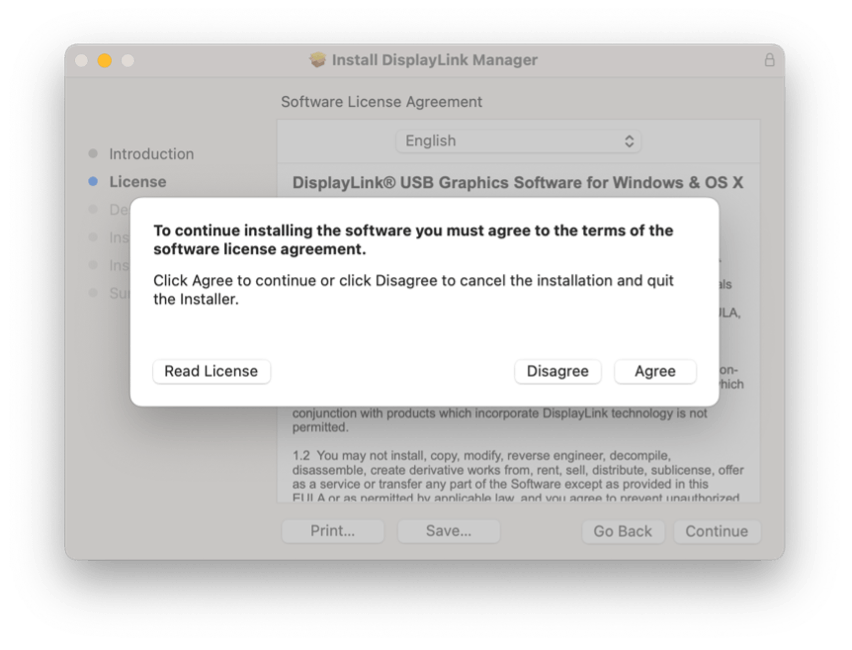
DisplayLink Manager installer on Mac, License step. Dialog: To continue installing the software you must agree to the terms of the software license agreement. Buttons: Read License, Disagree, Agree.

7. 「Installation Type」セクションに進み、「Install」 ボタンをクリックします。
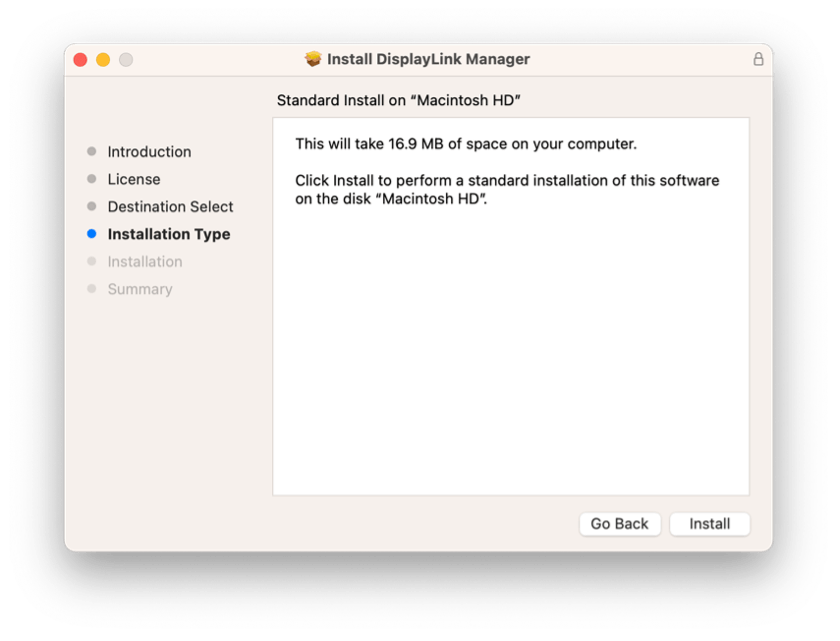
Step screenshot: Install DisplayLink Manager window on the Installation Type step, Standard Install on Macintosh HD, with the Install button.
8. ポップ画面にてパスワードを入力し、「Install Software」を選択するとインストールが始まります。

macOS Installer dialog asking for a password, with Install Software and Cancel buttons.

9. インストールが正常に完了すると下記の画面が表示されます。「Close」ボタンを選択してアプリのインストーラーを終了します。

10. DisplayLink Manager アプリーケーションから通知を許可するか尋ねるメッセージが表示されます。 必要であれば、「Options」ボタンをクリックして「Allow許可」をクリックします。
macOS notification: "DisplayLink Manager" Notifications. Notifications may include alerts, sounds and icon badges. Options button.

11. インストールが終わったら、DisplayLink デバイスをお使いのApple コンピューター/デバイスに接続して下さい。


12. デバイスが接続されると、macOS「DisplayLink Manager」 アプリケーションがコンピューターのスクリーンを記録しても良いか尋ねます。「 システム環境を開く」 をクリックしてアクセスを許可します。

macOS Screen Recording prompt: DisplayLink Manager would like to record this computer's screen and audio. Grant access to this application in Privacy & Security settings. Buttons: Open System Settings, Deny.

13. 「セキュリティーとプライバシー」アプリが開き、プライバシーのタブにて、画面内容の記録の許可におけるデフォルト設定が表示されます。

Step screenshot: macOS System Settings, Privacy & Security, Screen Recording, with the DisplayLink Manager toggle switched off.


14. macOS 12 以降では、変更を行うにはアプリケーションウィンドウの下にある南京錠マークをクリックして下さい。

15. 必要であればパスワードを入力して、「ロックを解除」します。

Screen Recording settings with a password prompt to unlock Privacy & Security, Unlock button.

16. DisplayLink Manager の横にあるスイッチをオンに入れます。

17. 変更を実行するために、DisplayLink Manager アプリケーションを終了して、再度ウィンドウを開く様にメッセージが表示されますので、これをクリックします。

macOS Privacy and Security, Screen Recording settings with DisplayLink Manager enabled. Dialog: "DisplayLink Manager" may not be able to record the contents of your screen until it is quit. Buttons: Later, Quit & Reopen.

18. 変更が完了すると、お使いのDisplayLinkベースの製品が接続されたディスプレイが自動的に開始します。

** ご注意 - DisplayLink Manager アプリケーションは、いかなる情報も記録したり保存したりすることはありません。この許可は 、DisplayLink アプリケーションが

DisplayLink接続ディスプレイに表示された画像を生成する上で必要な情報にアクセスするためのものです。 **


19. Appleメニュー中のスクリーン上部に表示されるようになったDisplayLink Manager アプリケーションのアイコンを選択します。DisplayLink Manager アプリケーション のステータスウィンドウが表示されます。

20. DisplayLink Manager アプリケーション のステータスウィンドウ内の、「Automatic startup」セクションの横にある「Launch automatically after login」にチェックマークを入れます。 これによって、DisplayLink アプリケーションが お使いのMacの起動ともに自動で動作を開始します。

21. DisplayLink デバイスがお使いのMacに接続されている途中でもmacOS から通知を受けるには、スクリーン下部のmacOSドック内のシステム環境設定(歯車マーク)をクリックし、「通知と集中モード」 を変更する必要があります。

22. サイドバーで「通知」をクリックします。通知センターにて「ディスプレイのミラーリング中または共有中に通知を許可」にチェックを入れると、DisplayLink デバイス接続中もmacOSから通知を受け取ることができます。

macOS System Settings, Notifications. The setting Allow notifications when mirroring or sharing the display is highlighted and turned on.

23. 全てのプロセスが完了したら、インストレーションの完了です。

{"statementLink":"","footerHtml":" ","hideMobile":false,"hideTrigger":false,"disableBgProcess":false,"language":"en","position":"left","leadColor":"#146ff8","triggerColor":"#146ff8","triggerRadius":"50%","triggerPositionX":"right","triggerPositionY":"bottom","triggerIcon":"people","triggerSize":"medium","triggerOffsetX":20,"triggerOffsetY":20,"mobile":{"triggerSize":"small","triggerPositionX":"right","triggerPositionY":"bottom","triggerOffsetX":10,"triggerOffsetY":10,"triggerRadius":"50%"}}
false